
 Chrome Extension
 Gmail, the way
you like it.
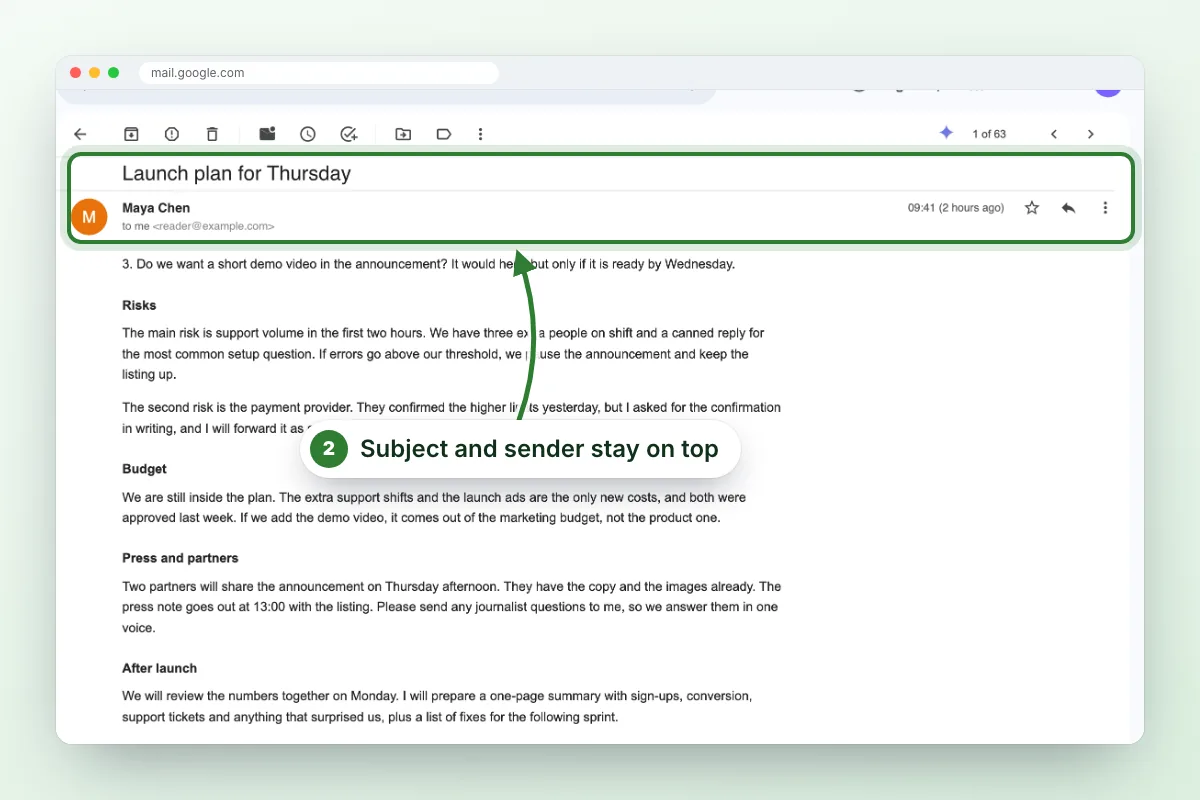
Clean Gmail hides the buttons you never use, keeps the subject and sender on top while you read, cleans up a conversation in one click, brings back the yellow star, tucks smart buttons into the toolbar and opens email links in Gmail.

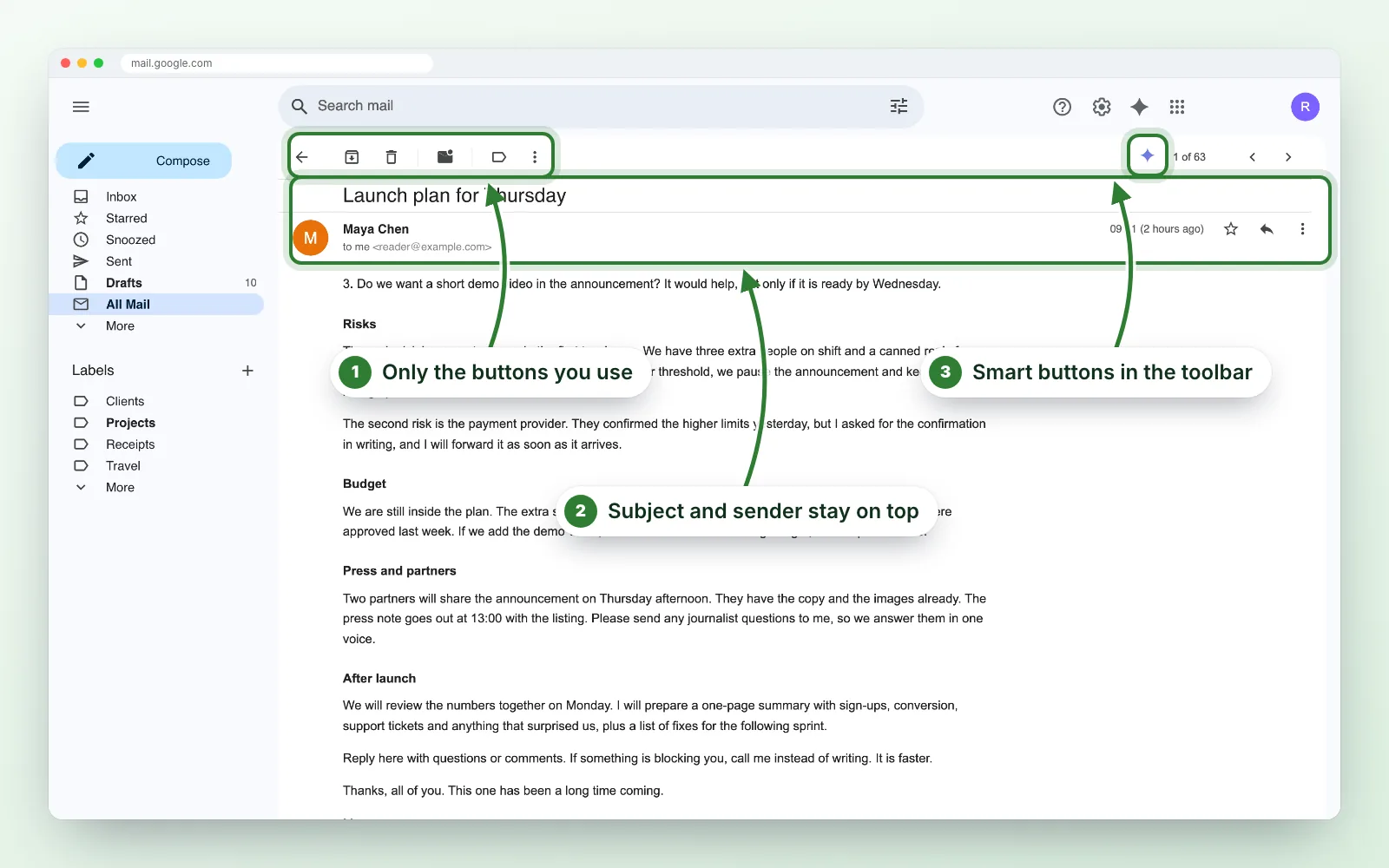
The same email, twice.
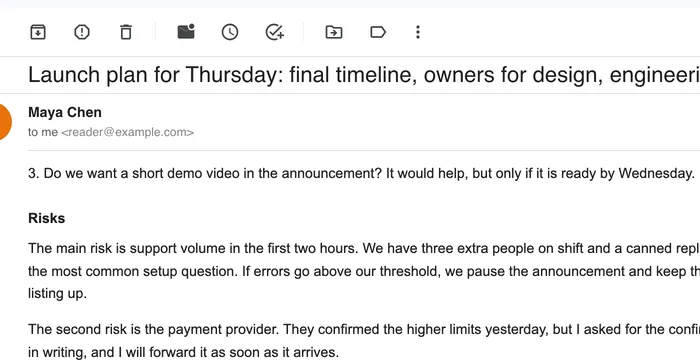
One message, scrolled to the same point. On the left, Gmail with Clean Gmail. On the right, Gmail as it ships: the subject and sender have scrolled away and every button is still in the toolbar.
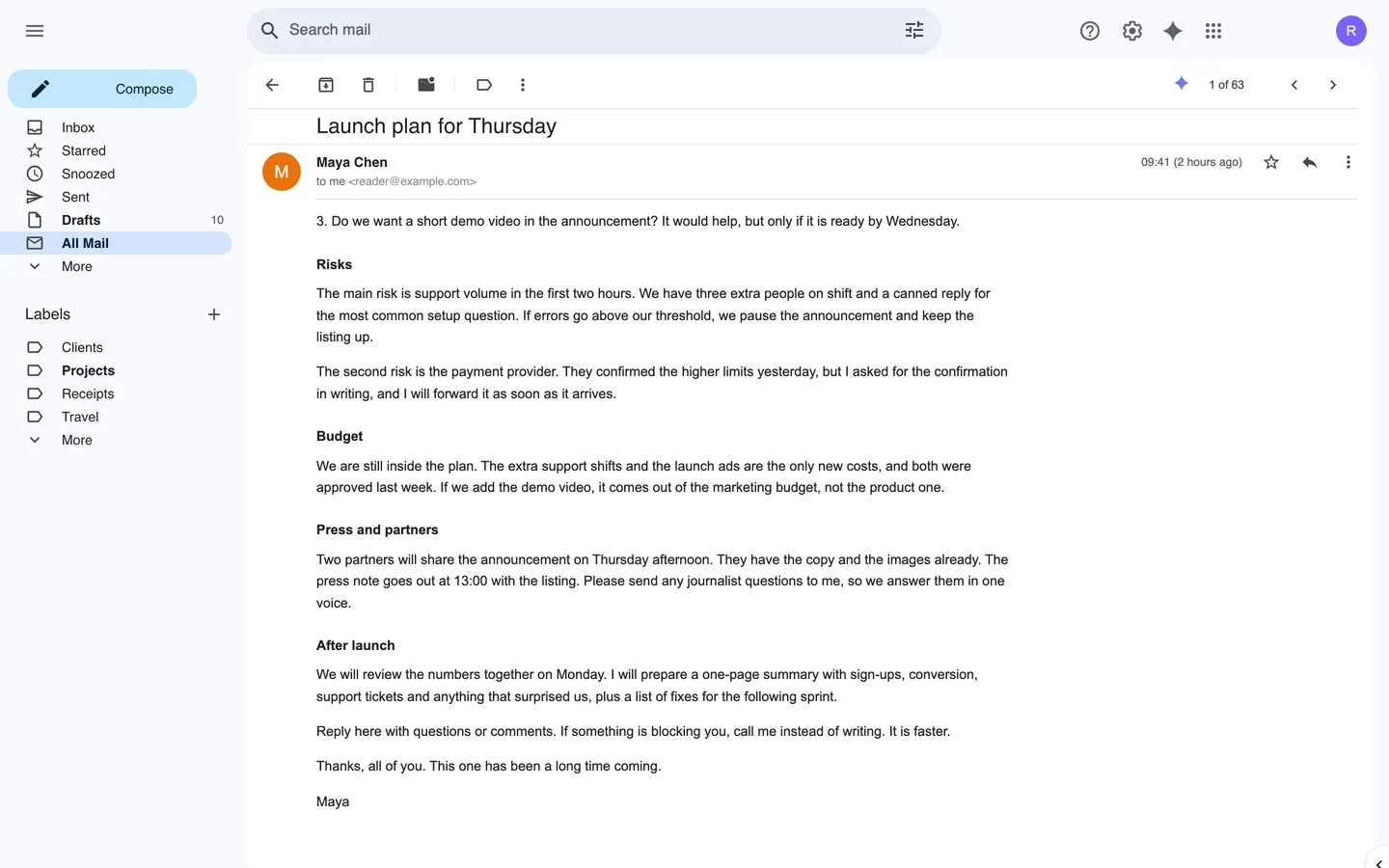
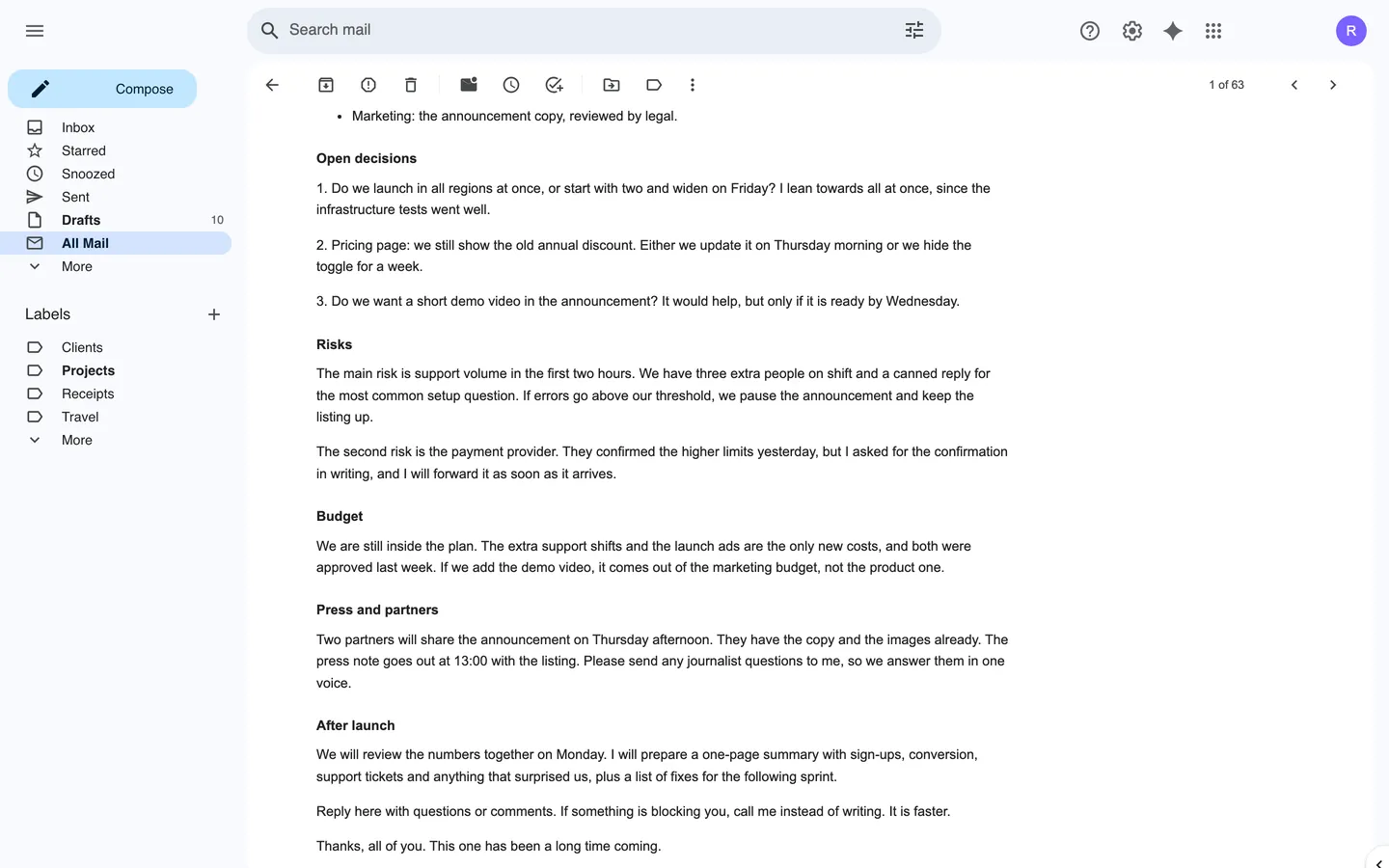 Clean GmailGmail original
Four buttons hidden, one moved, nothing removed. Every hidden button comes back with one click.
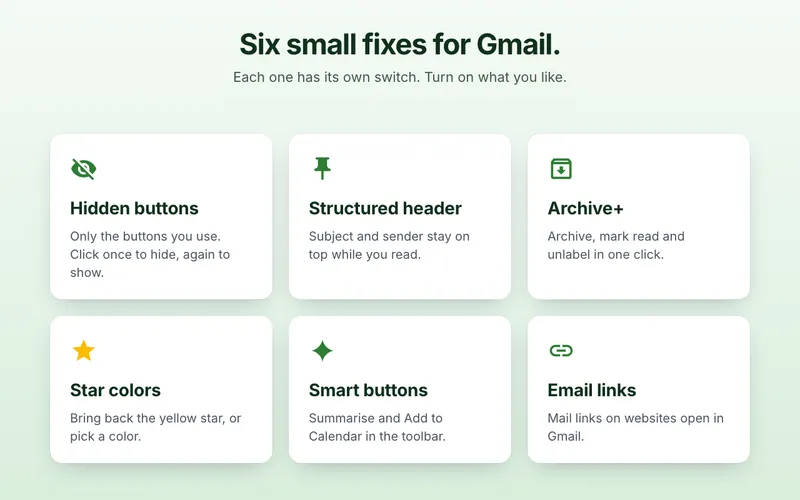
Six small fixes. One calmer Gmail.
- Hide the buttons you never use
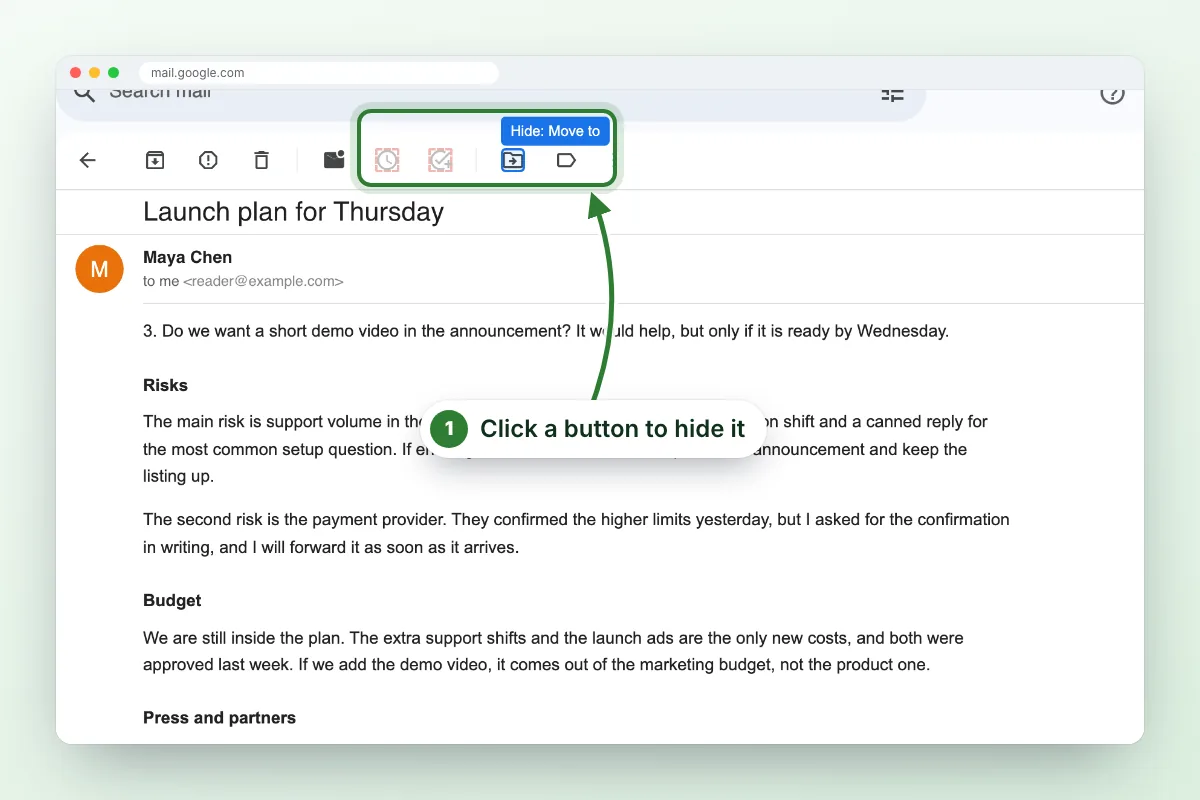
- Click Select buttons to hide, then click any Gmail button. It disappears. Faded buttons are hidden: click one again to bring it back.
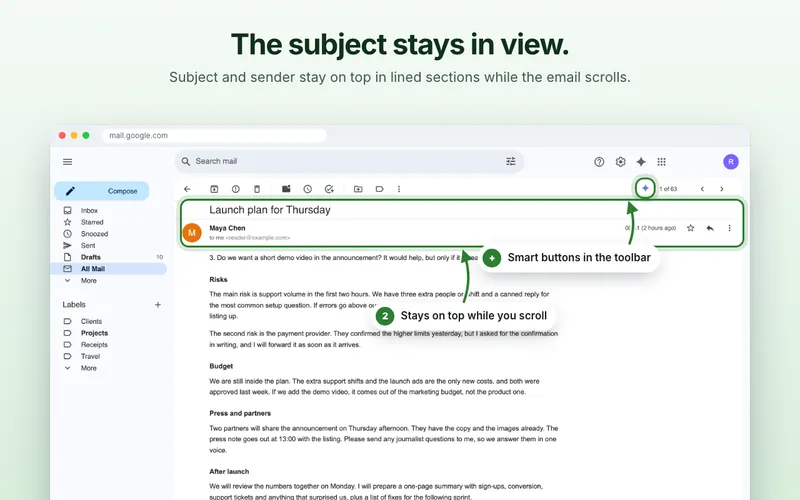
- The header stays while you read
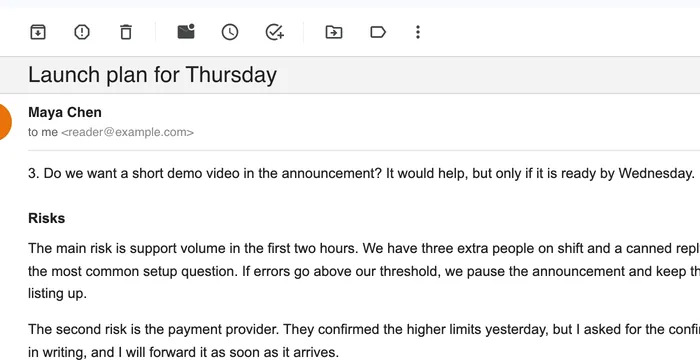
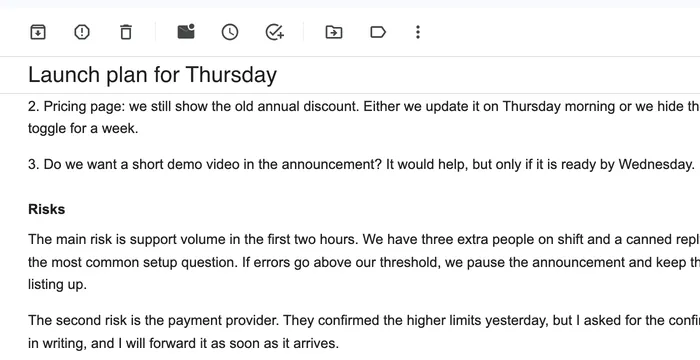
- The subject and sender of the email you are reading stay on top in lined sections while the message scrolls, with every recipient in full.
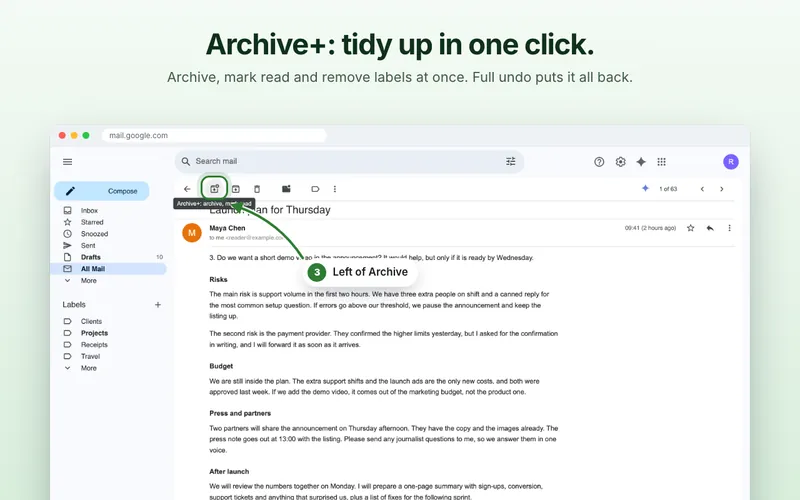
- Archive+ cleans up in one click
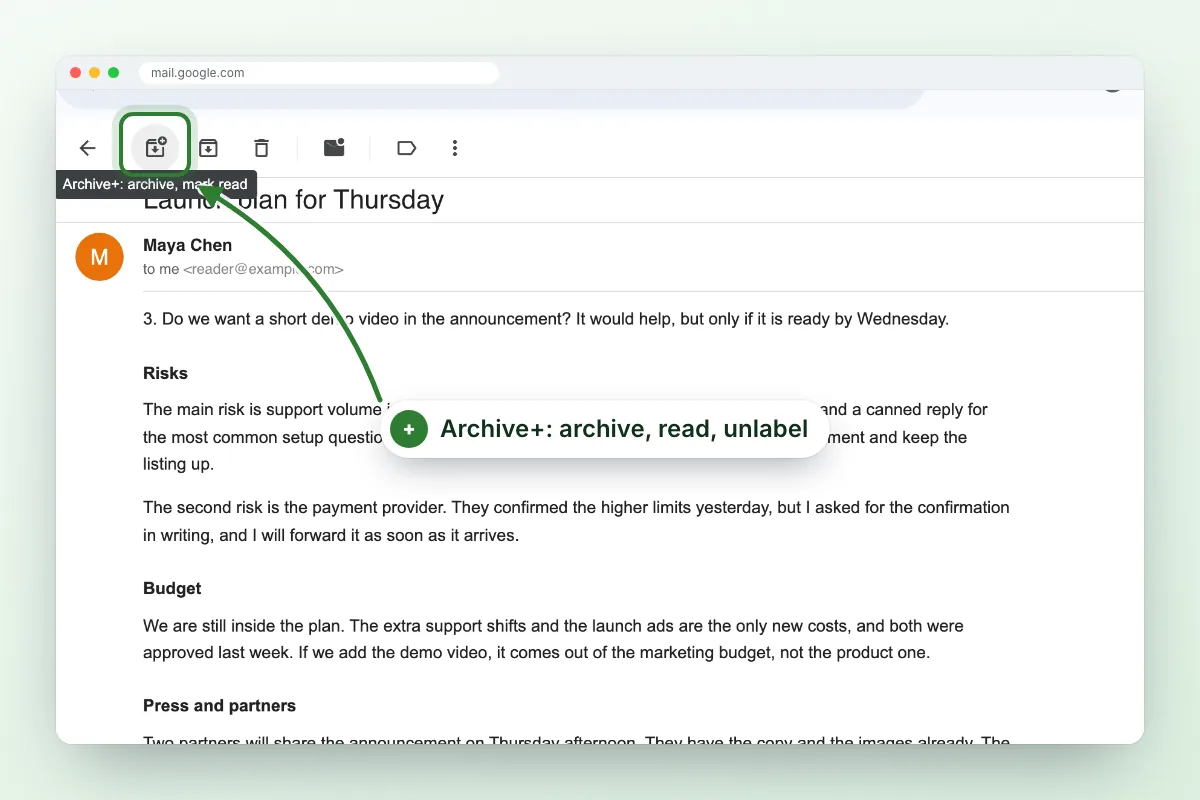
- A button left of Archive that also marks the conversation read and removes its labels. Off until you turn it on, with the shortcut W.
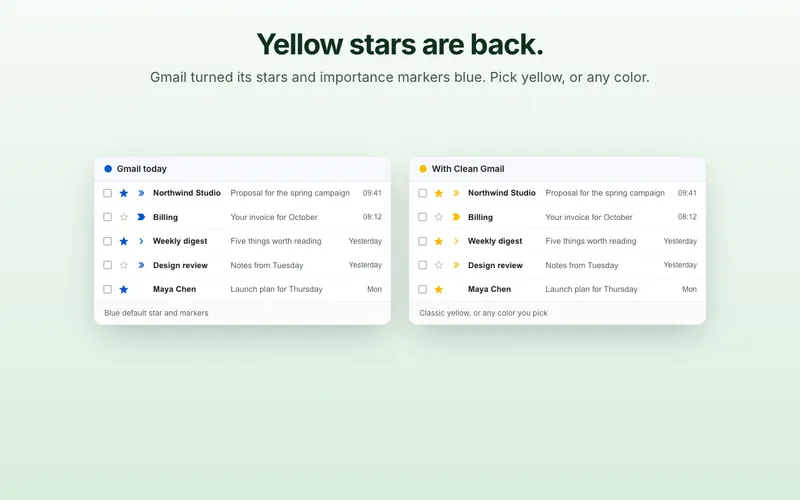
- Yellow stars are back
- Gmail turned its default star and importance markers blue. Bring back the classic yellow, or pick another color.
- Smart buttons move to the toolbar
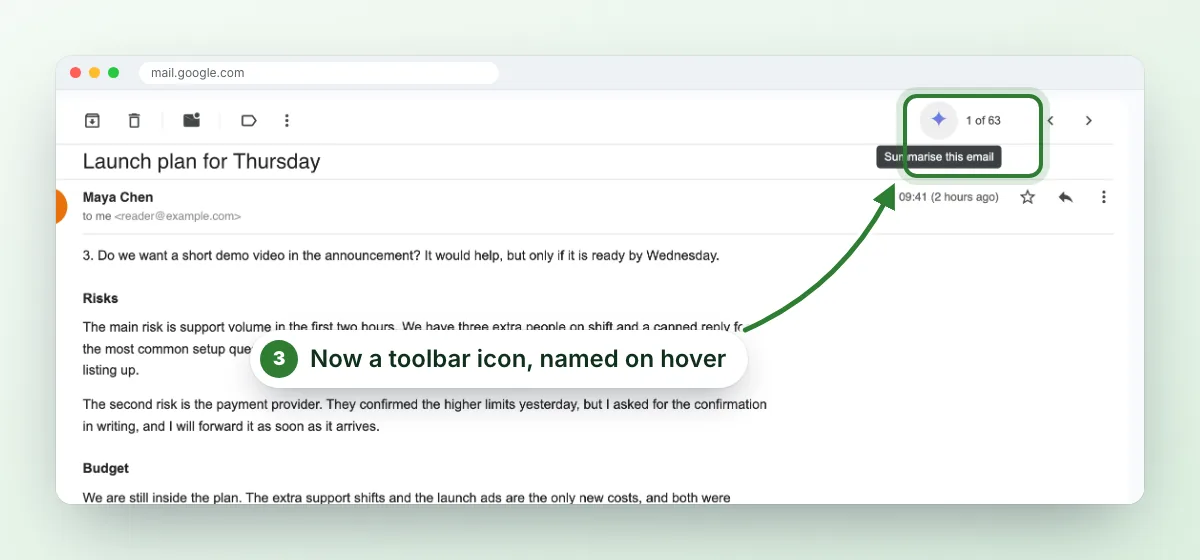
- Summarise this email and Add to Calendar become small icons next to the message counter, named on hover.
- Email links open in Gmail
- Turn it on, and an email link on any website opens a Gmail compose window instead of your computer’s mail app.
A header that stays, structured.
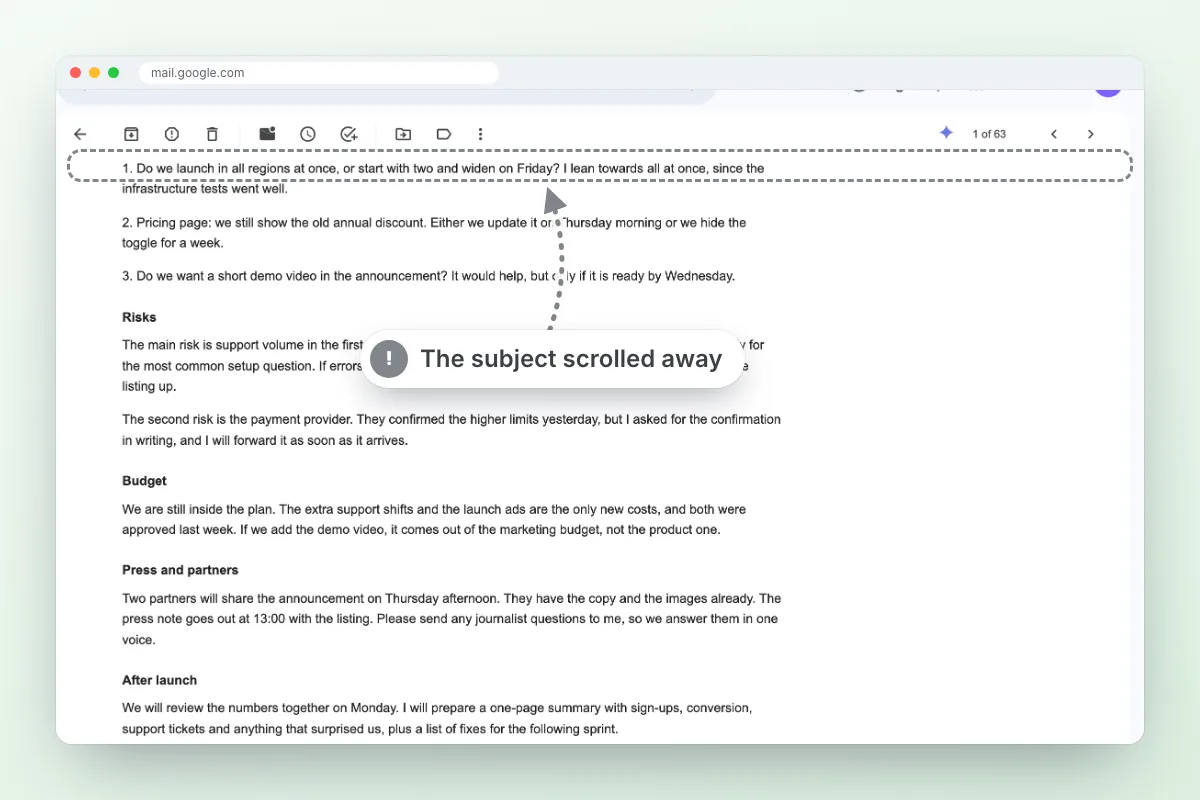
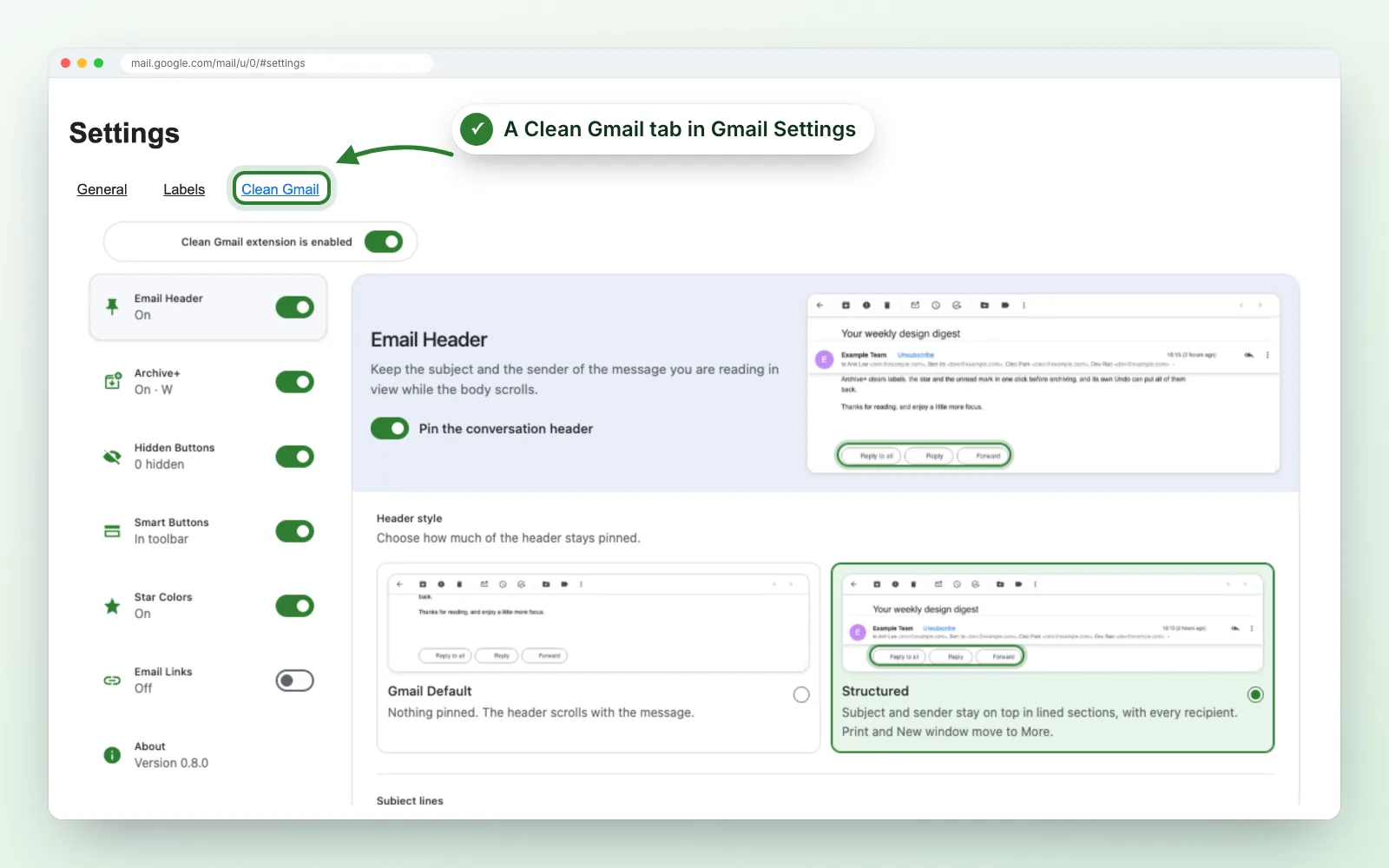
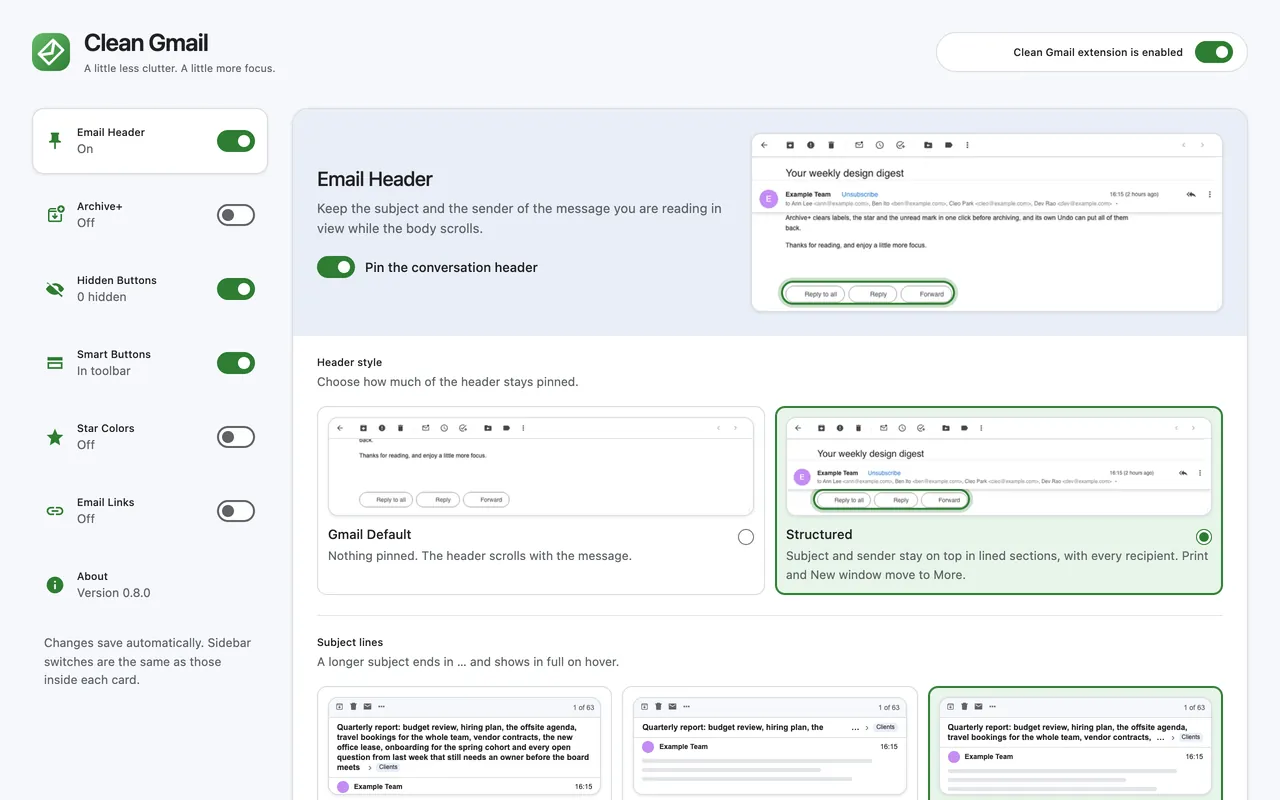
The Structured style keeps the subject and sender on top in lined sections while the message scrolls. Every recipient shows in full, and Print and New window move into the More menu. Gmail Default turns it off.
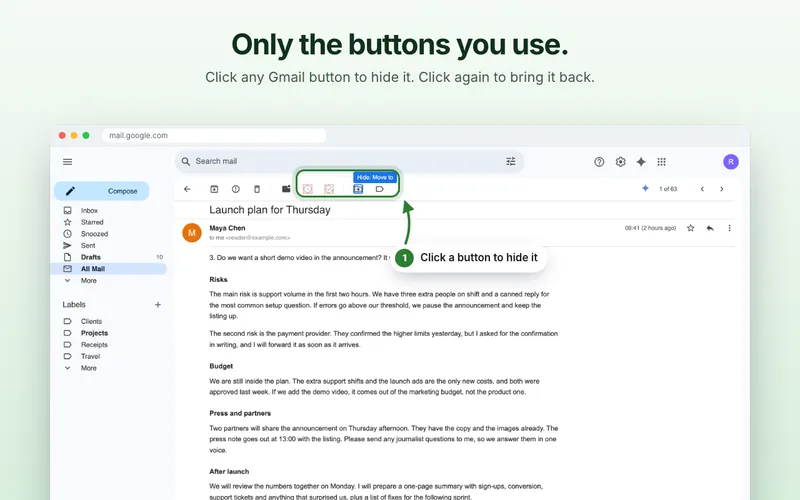
Point, click, gone.
Open the Clean Gmail popup and choose Select buttons to hide. Every Gmail button now shows its name. Click the ones you never use.
- Works across Gmail. Toolbar buttons, left navigation entries and smart chips.
- Nothing is deleted. Each hidden button is a CSS rule. Gmail’s own page is not changed.
- Undo any time. Show one button again, or all of them, from the popup or the settings.
Archive+, one click for all of it.
Archive+ adds a button to the left of Gmail’s Archive. One click archives the conversation, marks it read and removes its labels. It is off until you turn it on.
- You choose which labels go. All of them, only the ones you pick, or all except those, sub-labels included. The star stays unless you choose to remove it.
- Undo the way you like. Gmail’s Undo brings the conversation back to the inbox. Full undo also restores labels, star and unread.
- Works in the list too. Select conversations and clean them up together, or press W.
Smart buttons, out of the way.
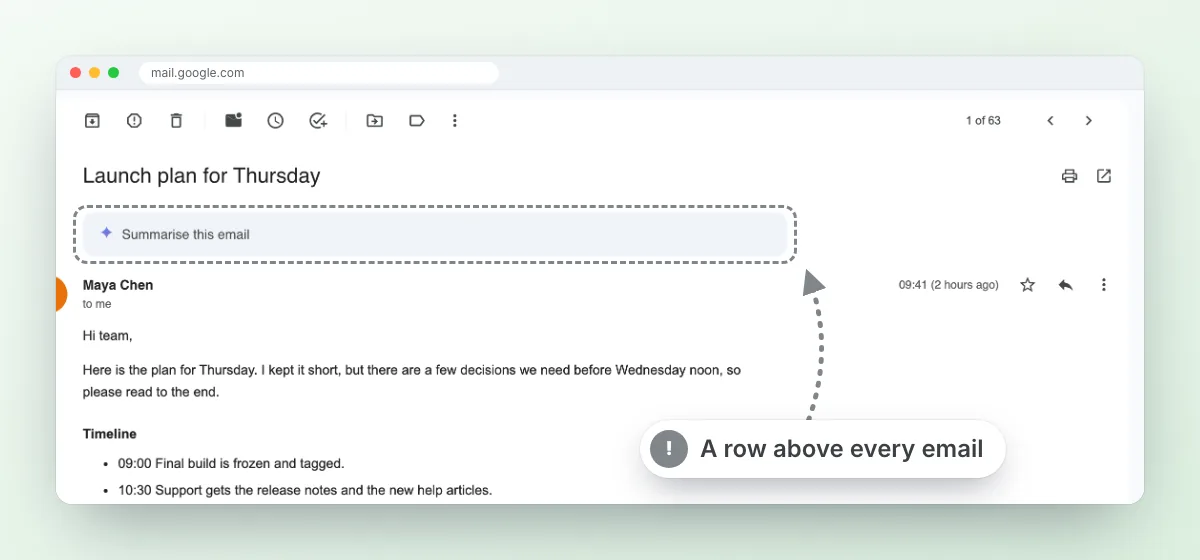
Gmail puts Summarise this email and Add to Calendar above the message, where they push the text down. Clean Gmail moves them into the toolbar as icons, named on hover. Clicking one still opens its field in the usual place.
Yellow stars are back.
Gmail’s redesign turned the default star and the importance markers blue. Star Colors brings back the classic yellow, or orange, red, green or purple, separately for stars and markers. Other star types keep their colors.
Email links open in Gmail.
Click an email address on any website and Gmail opens, ready to write. No mail app setup.
- Your choice of window. A popup over the page, a new tab, a background tab, or your existing Gmail tab.
- Off until you turn it on. Chrome asks for website access at that moment. Turning it off releases that access again.
- Right-click too. Email this page or Email this link with Gmail.
Settings that live in Gmail.
Every option has its own card with a small moving example, so you can see what a switch does before you flip it. Find them under Gmail Settings, Clean Gmail, or in the toolbar popup.
What it does not do.
It rearranges Gmail on your screen and, when you ask it to, cleans up a conversation in one click. The limits are worth stating plainly.
- It never stores, copies or sends the content of your emails.
- It never deletes anything. Archive+ only archives, and only when you click it.
- Hidden buttons are only hidden, never removed. The one button it adds, Archive+, stays off until you turn it on.
- It does not touch printing. Printed emails look exactly as Gmail prints them.
- It does not work in the Gmail mobile apps, only in Chrome on your computer.
- It is independent and is not affiliated with Google.
Nothing is sent to us.
Everything happens inside your Gmail tab. There is no server on the other end.
- Gmail only
- Site access is mail.google.com. Website access is only requested if you turn on email links, and released when you turn them off.
- No network requests
- No analytics, no telemetry, no account, no remote code. The extension never contacts a server.
- Only your settings
- Your switches, the names of the buttons you hid and the labels you pick for Archive+, kept in Chrome’s storage.
- Your email stays yours
- Message content is never stored, copied or sent anywhere.
Every setting and permission is listed in the privacy policy.
Three clicks to a calmer inbox.
Needs Chrome 111 or later. The pinned header and smart buttons work right away, with nothing to set up.
- Add Clean Gmail from the Chrome Web Store.
- Open any email in Gmail. The header is already pinned.
- Use the toolbar popup to hide buttons, or open the settings for more.
Questions.
- Does it send my email anywhere?
- No. It rearranges parts of Gmail’s page on your screen. Message content is never stored or sent, and the extension makes no network requests.
- Can I get a hidden button back?
- Yes. Open Select buttons to hide and click the faded button, or use Show all in the settings. You can also switch hiding off and keep your selection.
- Why does email links ask for access to all websites?
- An email link can be on any website, so Chrome has to let Clean Gmail notice the click there. It is only asked when you turn the feature on, and it is released when you turn it off.
- Does it work with several Gmail accounts?
- Yes. Every feature works in every account. For email links, choose which account opens compose.
- What exactly does Archive+ do?
- One click archives the conversation, marks it read and removes the labels you chose. It removes the star only if you turn that on. Gmail’s Undo brings the conversation back to the inbox; Full undo also restores labels, star and unread.
- Which stars does Star Colors change?
- Only Gmail’s blue default star and the blue importance markers. Other star types you added under Gmail Settings keep their colors, and turning Star Colors off restores Gmail’s blue.
- Does it work in dark mode?
- Yes. It uses Gmail’s own header and follows your Gmail theme, including inside Gmail Settings.
- What if Gmail changes?
- If Clean Gmail cannot find what it needs, it steps aside and Gmail looks the way it always does. Nothing breaks.
- How do I turn it off?
- Every feature has its own switch in the settings, so you can turn off one part and keep the rest. The switch in the toolbar popup pauses all of them at once.
Gmail is a trademark of Google LLC. This extension is independent and is not affiliated with Google. Read the privacy policy.
In the Chrome Web Store.
The five screenshots on the listing, in the order they appear there.
-
Six small fixes for Gmail. -
Only the buttons you use. -
The subject stays in view. -
Archive+: tidy up in one click. -
Yellow stars are back.
Try it on your own inbox.
Free, and every part can be switched off on its own.